

Initiatives Pro
Initiatives helps you manage and track progress across multiple related projects under a unified objective. Use it when you need a high-level view of how various projects and work items align with strategic goals.
Use Initiatives when you need to:
- Align multiple projects with a broader organizational goal.
- Manage and monitor groups of related projects efficiently.
- Provide stakeholders with an aggregated view of progress and status.
Activate Initiatives
To start using Initiatives, you'll need to enable the feature:
- Go to Workspace settings.
- Select the Initiatives tab on the right pane.
- Toggle on the Enable Initiatives option.
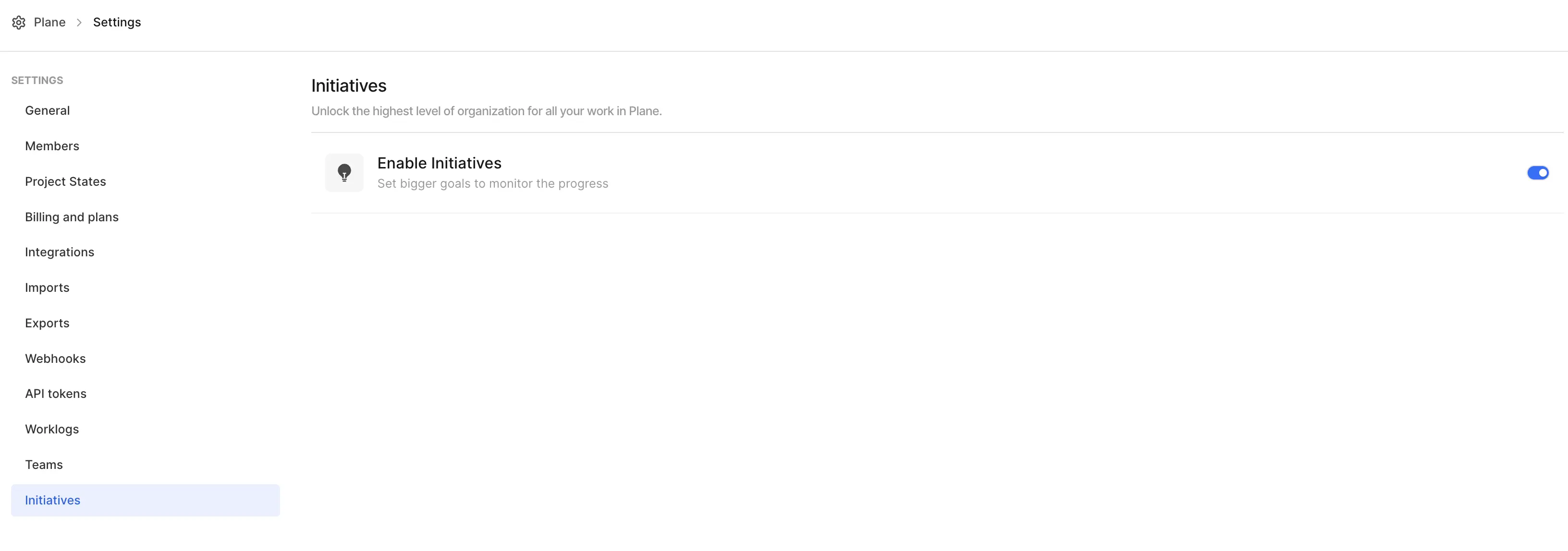
Once enabled, you'll see an Initiatives option in the sidebar under Workspace section.
Create an initiative
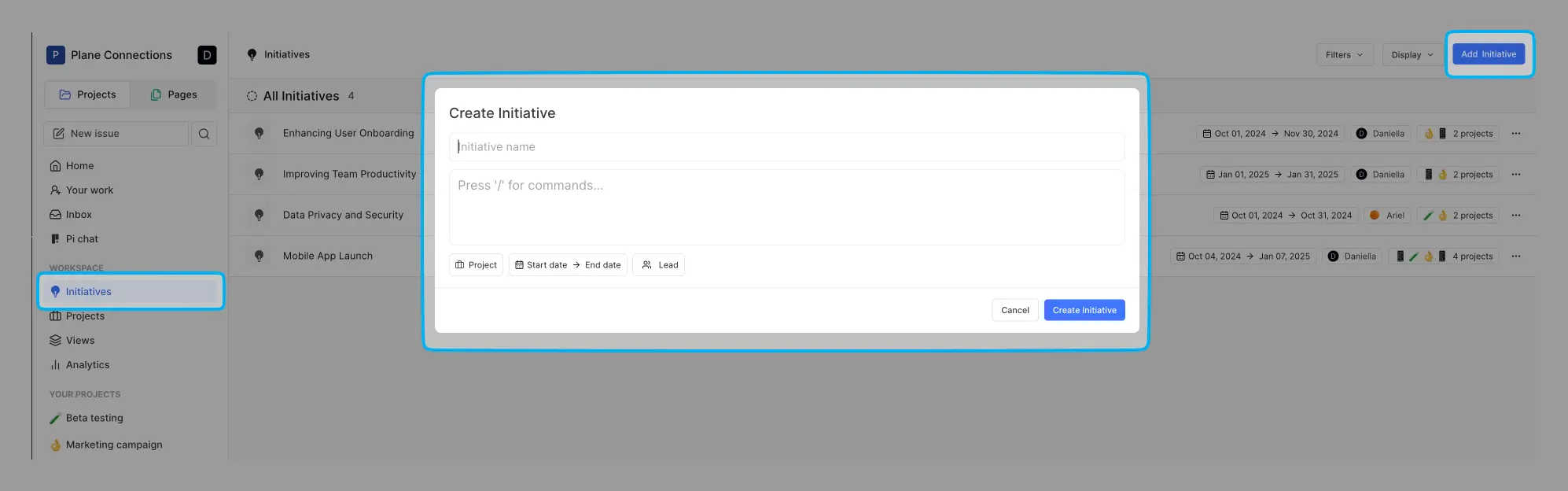
Follow these steps to set up an Initiative:
- Navigate to the Initiatives section in the sidebar.
- Click the Add Initiative button on the top right of the screen.
- Provide the following details:
- Title: Name your Initiative.
- Description: Add context about the goal of the Initiative.
- State: Set the initial state (Drafts, Planned, Active, Completed, or Closed). By default, new Initiatives are set to "Drafts".
- Start and End Dates: Define the timeline for the Initiative.
- Lead: Assign a person responsible for the Initiative.
- Labels: Add custom labels to categorize the Initiative (labels must be set up in workspace settings first).
- Click Create Initiative.
View and manage initiatives
Once created, you can view all Initiatives in the Initiatives section on the sidebar.
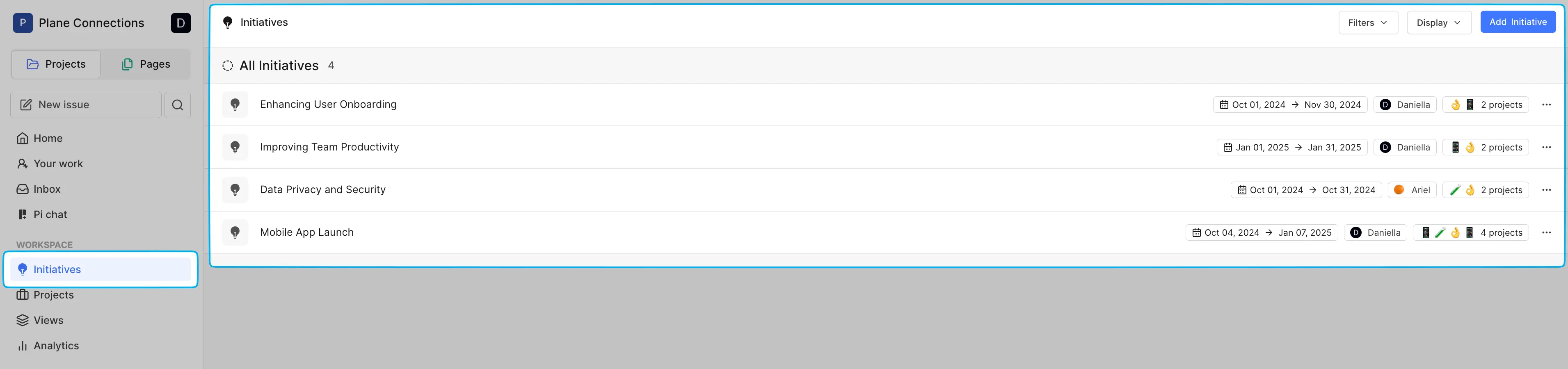
Selecting an Initiative opens its detailed view.
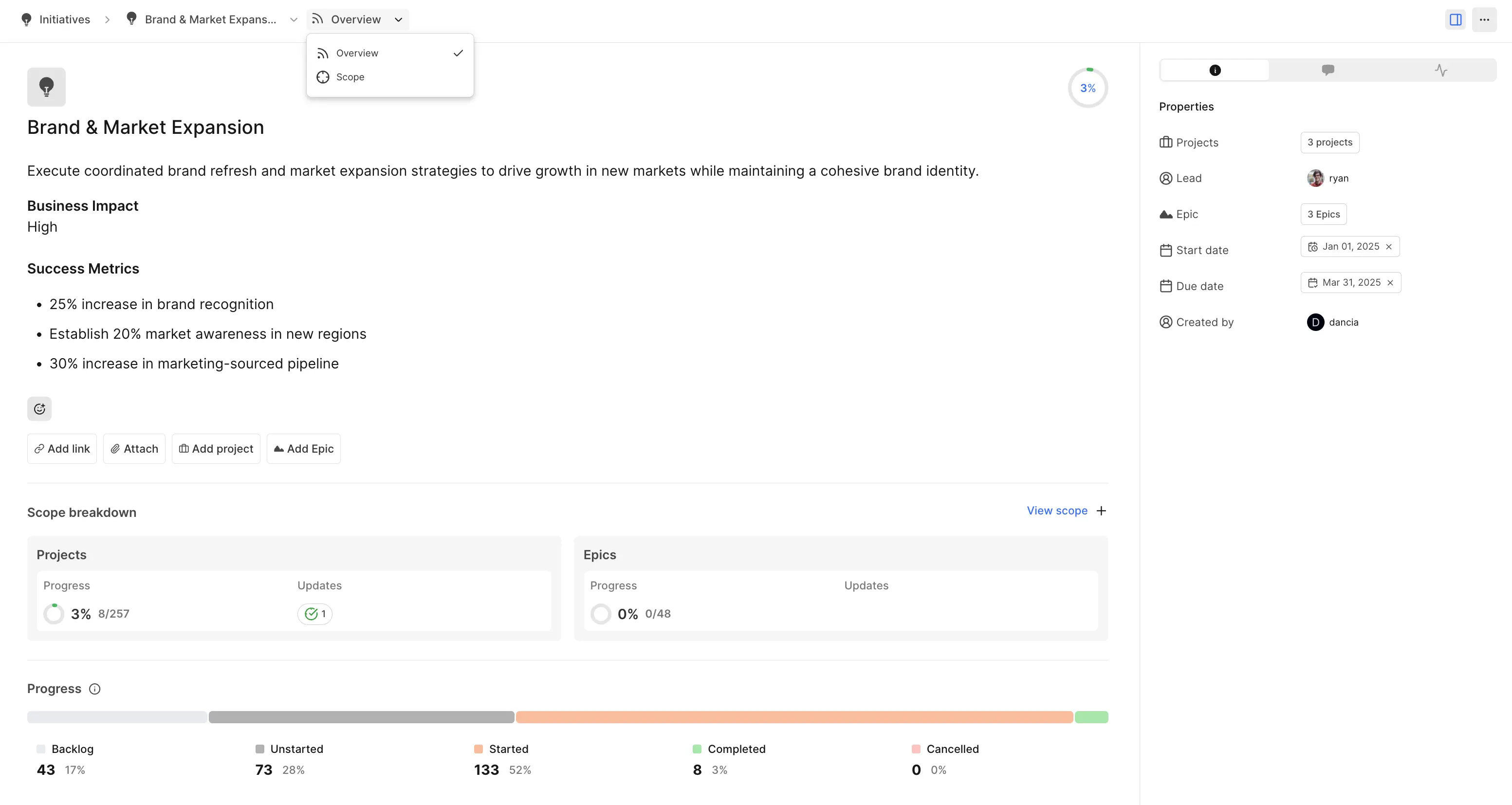
Initiatives now offer two distinct views to help you track progress and manage scope effectively. Use the dropdown in the top navigation to switch between Overview and Scope views depending on whether you need high-level progress insights or detailed scope management.
Initiative layouts
Initiatives offers three distinct layouts to help you visualize and manage your strategic goals. Use the layout selector in the top navigation bar to switch between views.
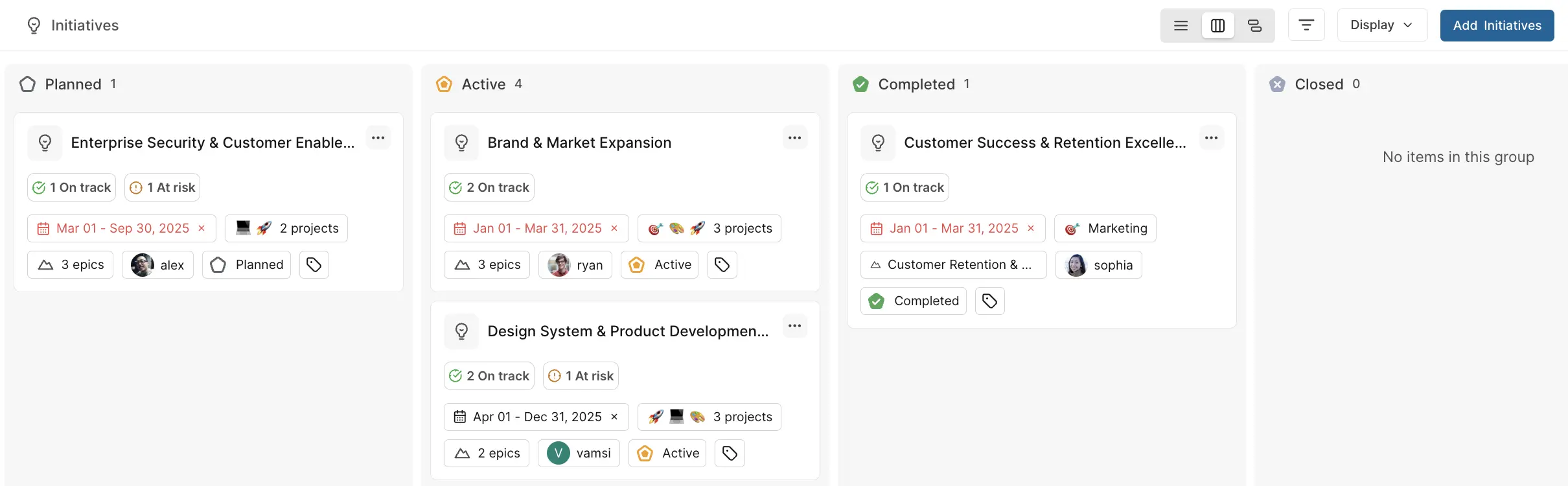
List layout
The default view that displays Initiatives in a structured list format, showing key details like progress status, dates, connected projects and work items, leads, and states at a glance. This layout is ideal for quickly scanning through multiple Initiatives and comparing their high-level status.
Board layout
Organizes Initiatives into columns based on grouping criteria, providing a kanban-style view of your strategic work. This layout works well for tracking Initiatives through different stages or when you want to see how work is distributed across teams or states.
Timeline layout
Visualizes Initiative timelines on a gantt view, making it easy to see duration, overlaps, and scheduling across your strategic portfolio. Switch between Week, Month, Quarter, and Today views to adjust your time horizon. This layout is perfect for identifying timeline conflicts and understanding how Initiatives are sequenced over time.
All three layouts support filtering and grouping in the top navigation.
Initiative overview
The Overview gives you a bird's-eye view of your Initiative's progress. You'll see a comprehensive scope breakdown that tracks both projects and work items within your initiative, showing completion percentages and recent updates at a glance.
The progress visualization at the bottom provides an instant snapshot of work distribution across different states - from backlog items to completed work. The percentages and counts for each category are automatically calculated based on the associated projects. This makes it easy to understand where your initiative stands and identify any bottlenecks in your workflow.
TIP
Use Initiatives for a top-down view of progress. For detailed updates, navigate to individual projects.
Initiative scope
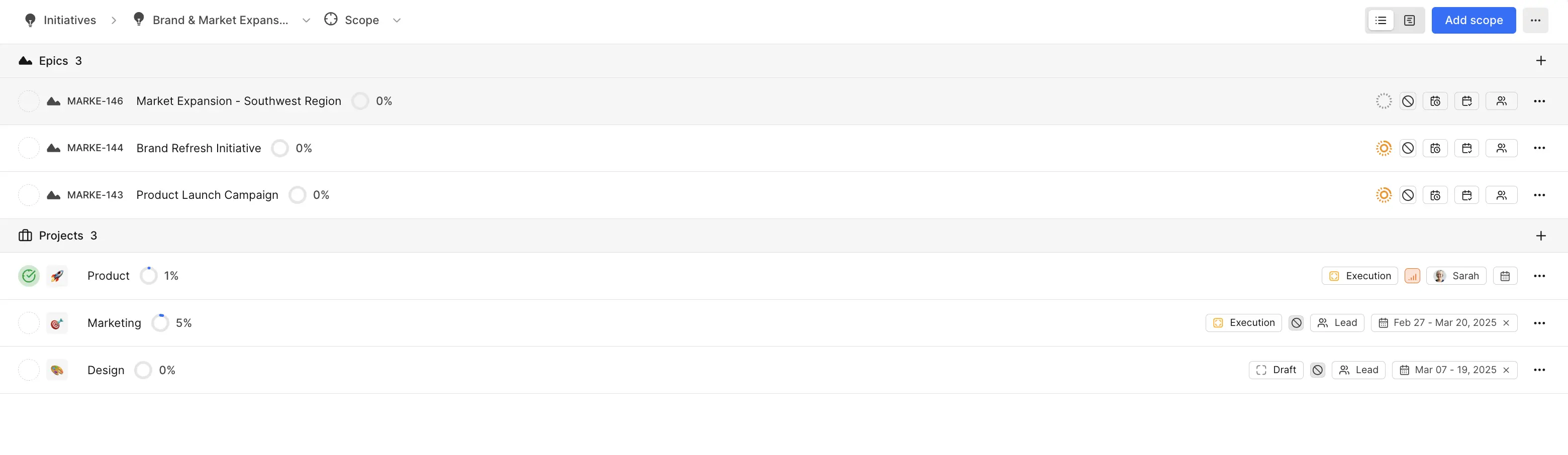
Use the dropdown in the top navigation to switch to the Scope view to see all the building blocks of your initiative. Here you'll find detailed lists of:
Work items
You can bring together work items from different projects into a single, high-level view under one initiative. This gives you a centralized picture of how everything is moving forward across workstreams.
Any work item type can be added to an initiative — Tasks, Bugs, Features, Epics, or any custom type your workspace uses. You are not limited to a single type.
Adding work items to an initiative lets you:
- Group related work from different projects under one goal.
- Track progress, dependencies, and blockers across multiple projects in one place.
- Monitor overall progress and update statuses without switching between projects.
Projects
Connected projects showing completion rates and key details like execution status, leads, and timelines. Each item shows its current progress, making it simple to drill down into specific areas that need attention or are ready for the next phase.
Use the Add scope button in the top-right corner to expand your initiative by connecting additional work items and projects. This makes it easy to grow your initiative as new work streams emerge or when you need to link existing work to your strategic goals.
Initiative states
Every Initiative has a state that reflects its current phase. Use the State property to update its status:
- Drafts
Initiatives in the planning phase that aren't ready to start - Planned
Initiatives that are defined and scheduled but not yet active - Active
Currently ongoing Initiatives that teams are working on - Completed
Successfully finished Initiatives that have met their goals - Closed
Initiatives that have been archived or discontinued
You can filter Initiatives by state using the Display dropdown in the Initiatives list view, making it easy to focus on active work or review completed efforts.
Initiative labels
Labels help you categorize and organize Initiatives across your workspace. Before you can use labels on Initiatives, you need to set them up in your workspace settings.
- Go to Workspace settings.
- Navigate to the Initiatives tab in the left sidebar.
- Scroll to the Labels section.
- Click Add label or Create your first label.
- Define your label name and color.
Once labels are created, you can assign them to any Initiative through the Labels property in the Initiative's properties panel. Multiple labels can be applied to a single Initiative, allowing for flexible categorization.
Initiative updates
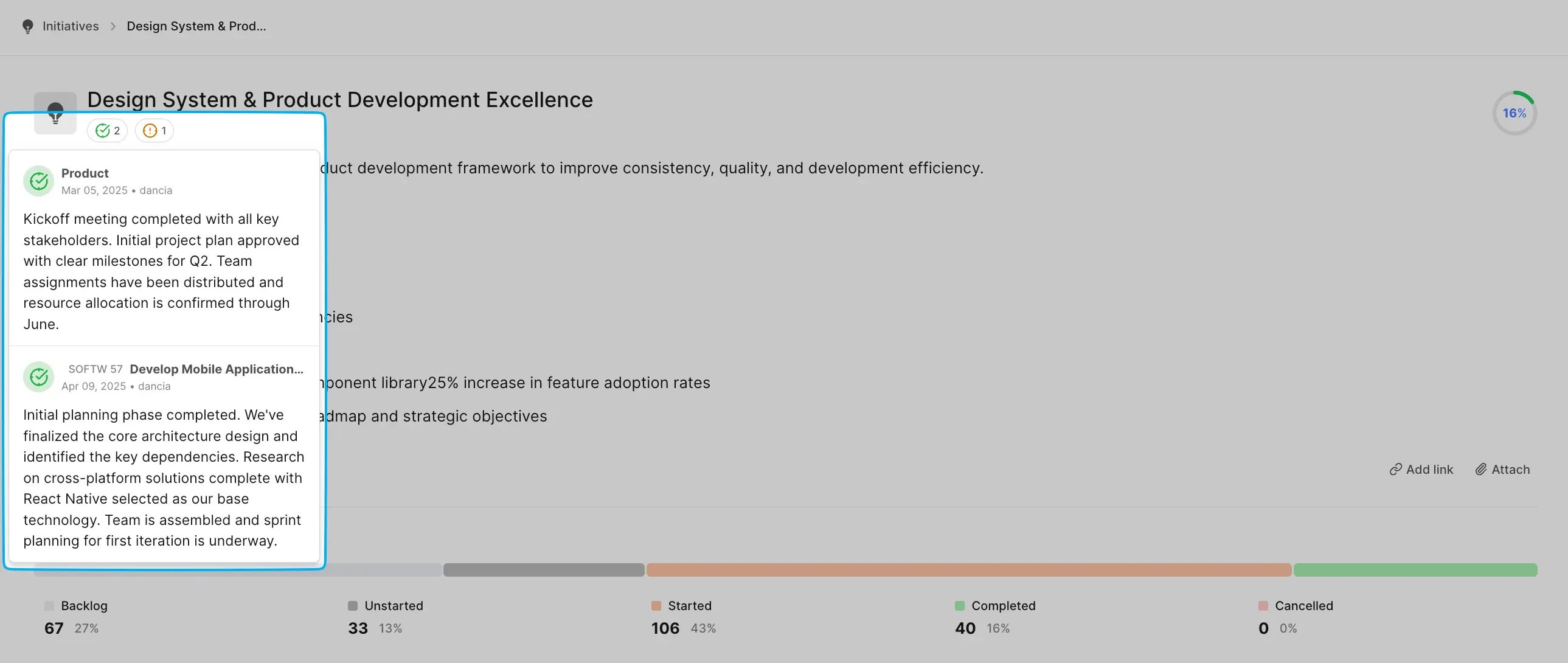
The Initiative updates stream displays all project and work item updates in a chronological feed at the top of the Initiative view. Each update card shows:
- Status indicators (On Track, At Risk, Off Track)
- Source project or work item name
- Post date and author
- Complete update content
This consolidated view enables Initiative owners to monitor progress across all connected work without navigating to individual items. The stream combines qualitative context with the initiative's quantitative metrics, providing real-time visibility into progress and potential risks across all contributing workstreams.
Properties, comments, and activity
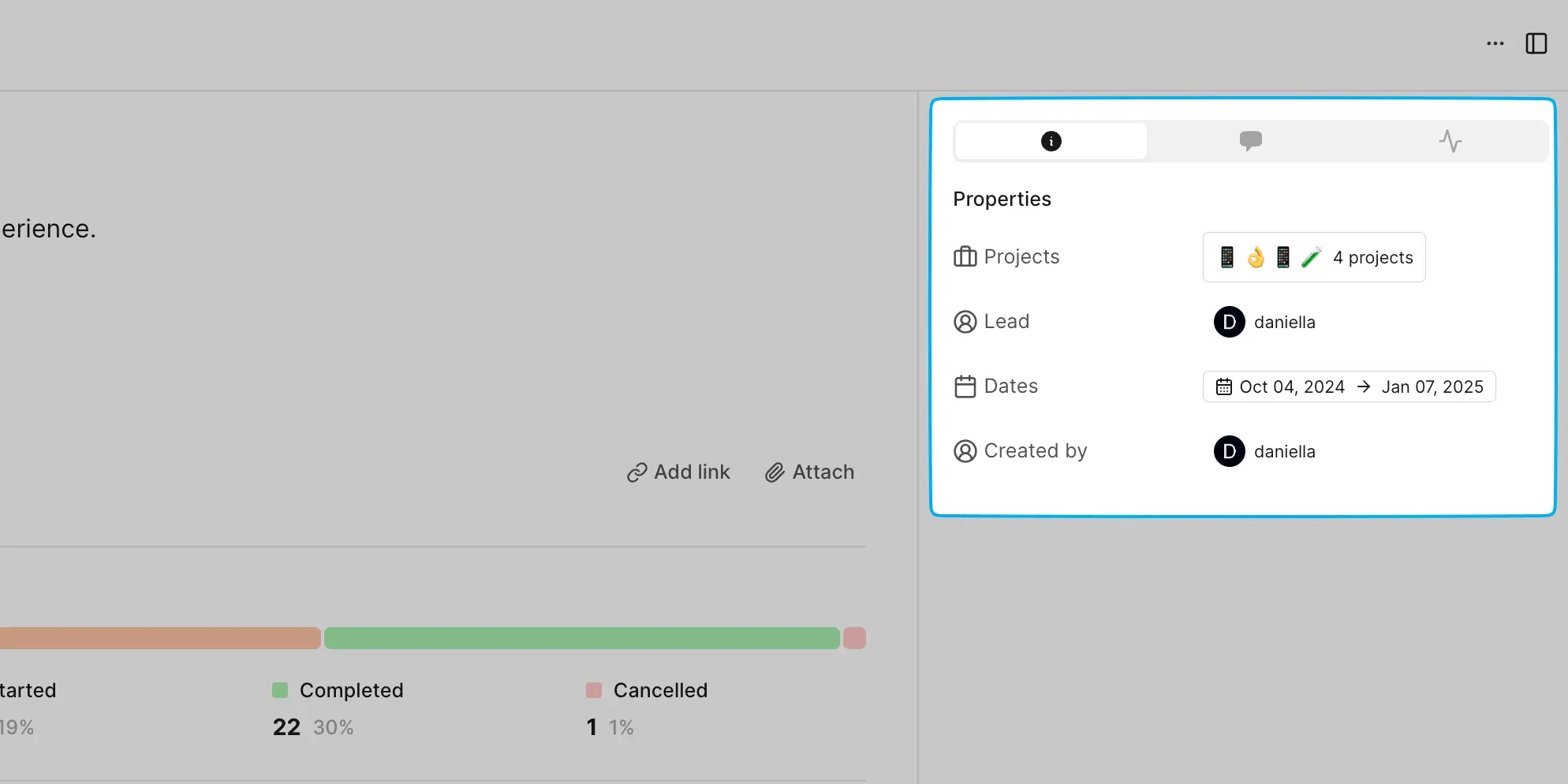
The Info tab on the side panel of an Initiative provides a quick snapshot of key properties and metadata associated with the Initiative.
- State: Track the Initiative's lifecycle phase (Drafts, Planned, Active, Completed, Closed)
- Projects: Number of connected projects
- Work items: Number of associated work items
- Lead: Person responsible for the Initiative
- Start date: When the Initiative begins
- Due date: Target completion date
- Created by: Initiative creator
- Labels: Custom categorization tags for organization
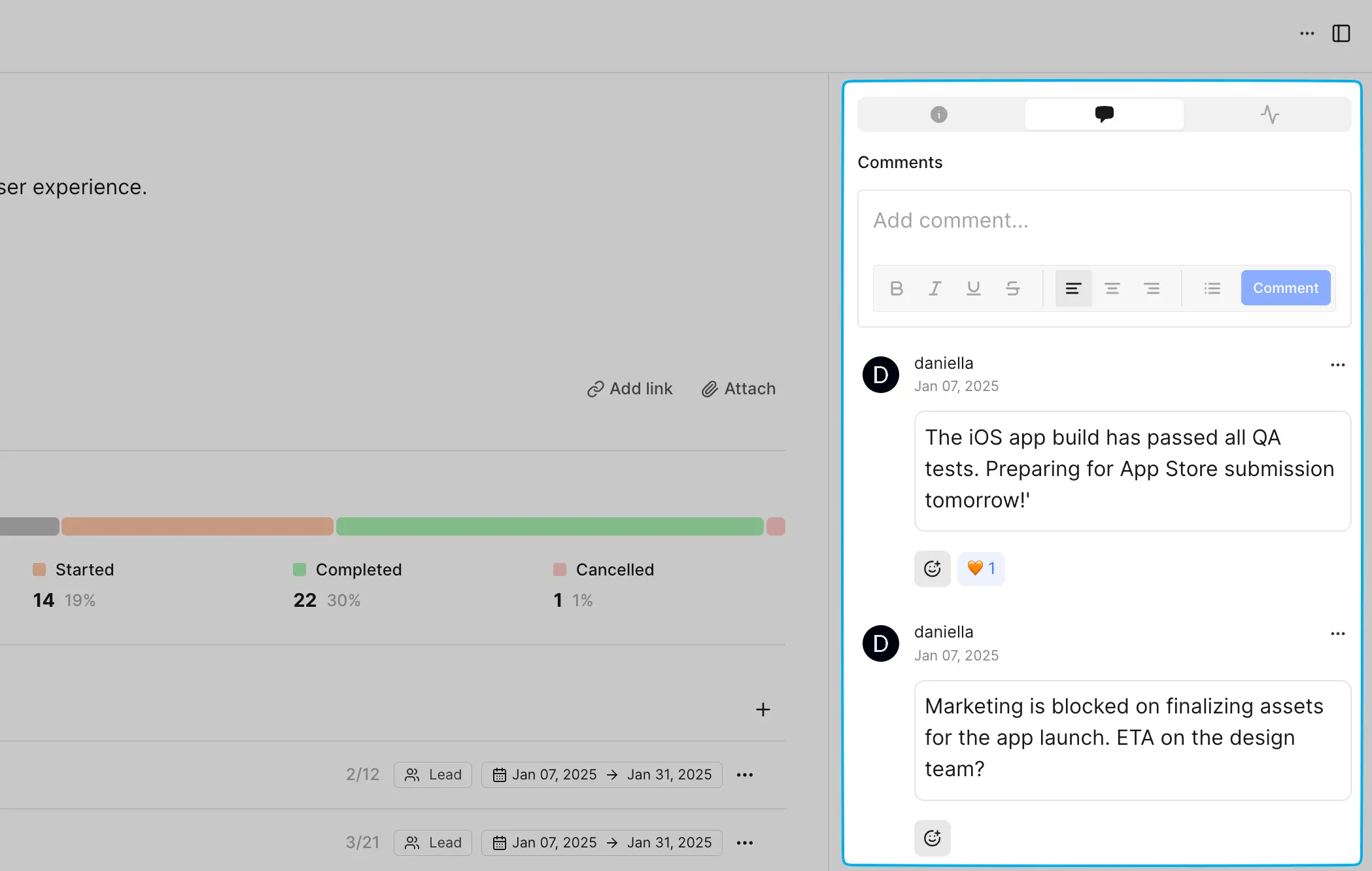
Add comments to discuss updates or highlight issues.
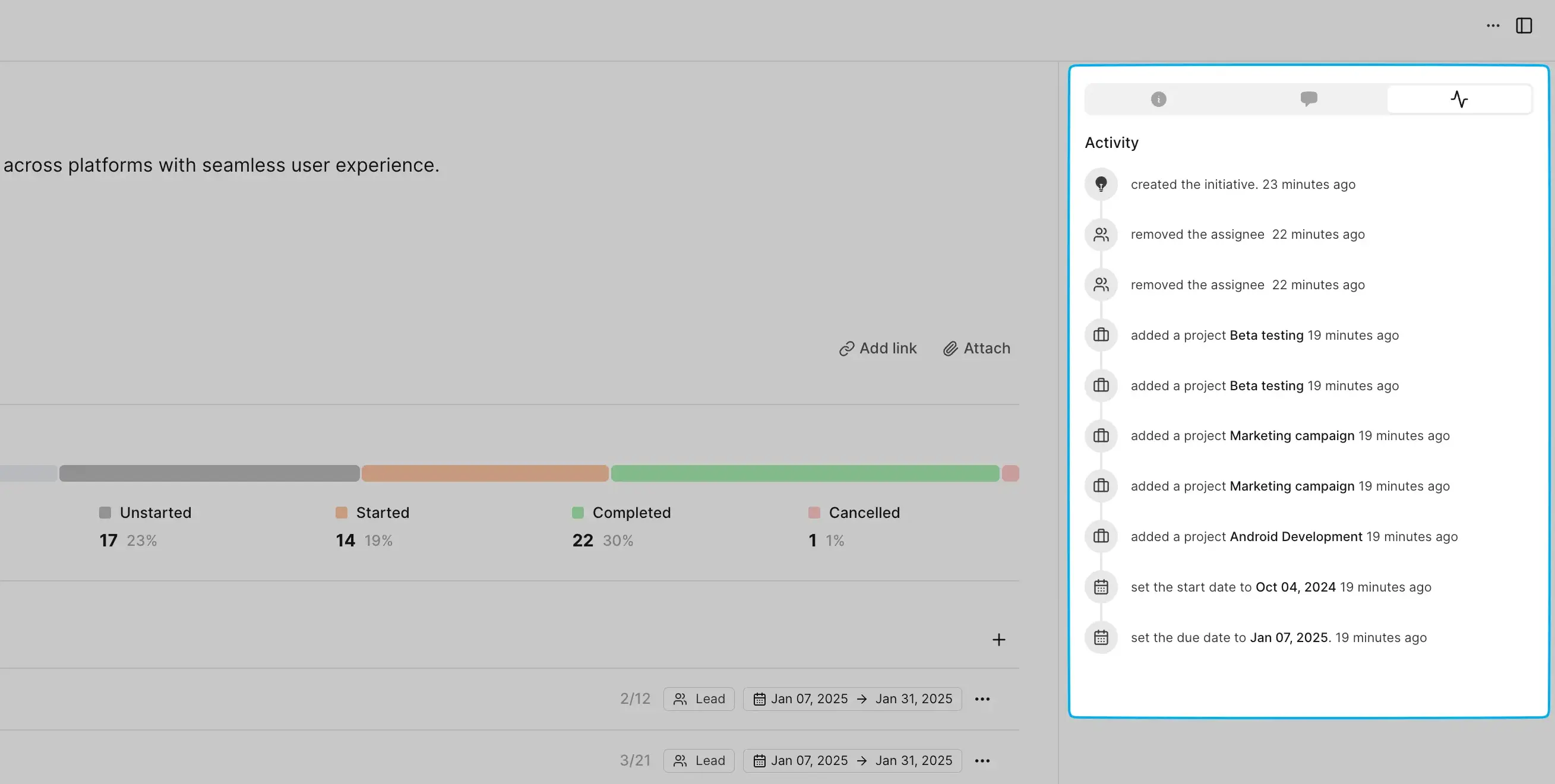
View the activity log for all updates related to the Initiative.
Sort and filter initiatives
To make managing initiatives easier, Plane provides comprehensive options to filter, group, and sort them based on various criteria.
Filter initiatives
Use the filter icon in the top navigation to apply filters:
- Lead: Filter by the assigned lead with options to select multiple leads or search for a specific person.
- Start date: Filter based on Initiative start dates with quick options like "1 week from now," "2 weeks from now," "1 month from now," or use a custom date selector.
- End date: Filter based on target completion dates, similar to the start date options.
- State: Filter Initiatives by their lifecycle phase (Drafts, Planned, Active, Completed, Closed).
- Labels: Filter by custom labels to find Initiatives in specific categories.
Display options
Click the Display dropdown in the top navigation to customize how Initiatives are organized and sorted:
Group by
- Lead: Group Initiatives by the person responsible for them
- Created By: Group by the person who created the Initiative
- States: Group by lifecycle phase (Drafts, Planned, Active, Completed, Closed)
- Labels: Group by assigned labels
- None: View all Initiatives in a flat list without grouping
Order by
- Manual: Drag and drop to arrange Initiatives in your preferred order
- Last Created: Sort by creation date, showing newest Initiatives first
- Last Updated: Sort by last modification date, showing recently updated Initiatives first
These filtering, grouping, and sorting tools make it easier to focus on specific Initiatives or prioritize your view based on team needs and workflow preferences.